Meet the Post Composer: Type a Topic, Get a Post — Grounded in Real Posts from Peer Governments
Every communications office knows the blank-box problem. The hydrant flushing notice, the concert in the park, back-to-school safety — someone in your seat writes that same announcement every year, from scratch, under time pressure, usually alongside three other jobs. Meanwhile, a communicator in a government like yours already wrote a great version of it. The number-one thing people do in GovFeeds has always been exactly that search: what did peers post about this, and what worked? As of July 19, the Post Composer closes the loop — from that research to a ready-to-edit draft, with the receipts attached, on every GovFeeds account.
Where it lives: right above the chat box
Open the GovFeeds AI tab and the ✍️ Post Composer panel sits just above the chat box, all the time. There’s nothing to install, no setup, and no separate tool to learn — it’s on every plan, including the 14-day free trial.
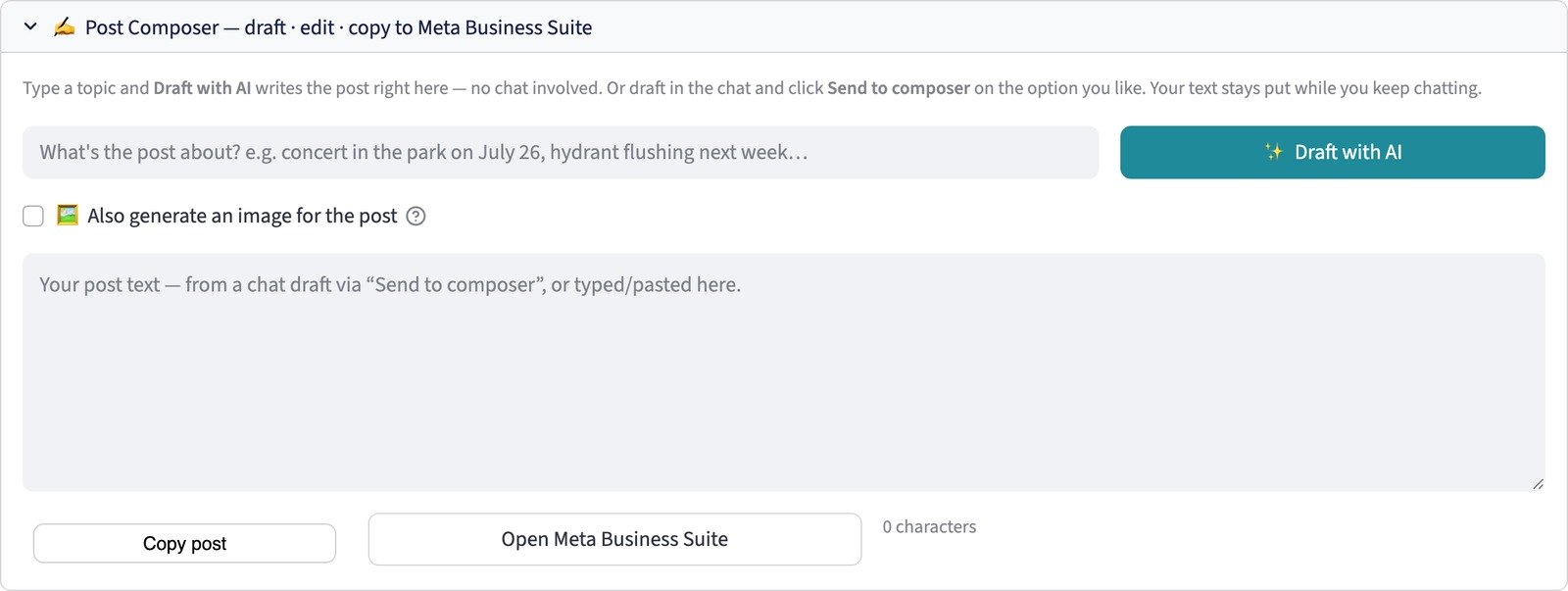
Type what the post is about. That’s the whole workflow.
- Type a topic — “concert in the park on July 26,” “hydrant flushing next week,” “back to school safety.”
- Click ✨ Draft with AI. The post is written right there in the panel. It doesn’t start a chat conversation or scroll anything away — the composer is its own quiet tool.
- Edit in place, then export. A character count tells you when Facebook will tuck the end of your post behind “See more.” When you’re happy: Copy post, Open Meta Business Suite, paste.
Here’s one unedited run, exactly as it came back. We typed “back to school safety, with an image” and clicked the button once:

Real references, not AI vibes
Look at the bottom of that screenshot. “Grounded in these real peer posts” isn’t decoration — it’s the actual list of posts the draft was built from, drawn from GovFeeds’ corpus of 1.1 million+ posts from 5,000+ U.S. city and county accounts across all 50 states. Every reference names the government and date and links to the original Facebook post, so you can read exactly how a peer government handled the same announcement before you borrow from it.
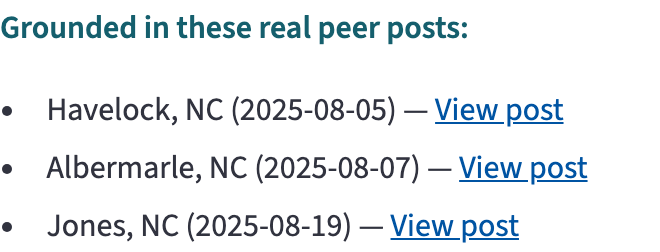
Two more honesty features worth calling out, because government communicators are exactly the audience that should demand them:
- Placeholders instead of hallucinations. The AI doesn’t know your school district’s name or your start date — so it doesn’t invent them. It marks them as [bracketed placeholders], and the composer keeps a visible warning on the draft until you’ve filled them in.
- An honest empty state. If nothing in the corpus closely matches your topic, the composer says so plainly and tells you the draft was written without peer grounding — it never pads a fake source list.
An image when you want one
Tick 🖼️ Also generate an image for the post — or just say “with an image” in the topic, which is detected automatically — and the draft arrives with a matching graphic: clean, non-partisan, civic in style (no fake seals or logos), sized for social. A Download image button sits underneath so you can attach it when you paste the post into Meta Business Suite.
Or draft in the chat, then send it over
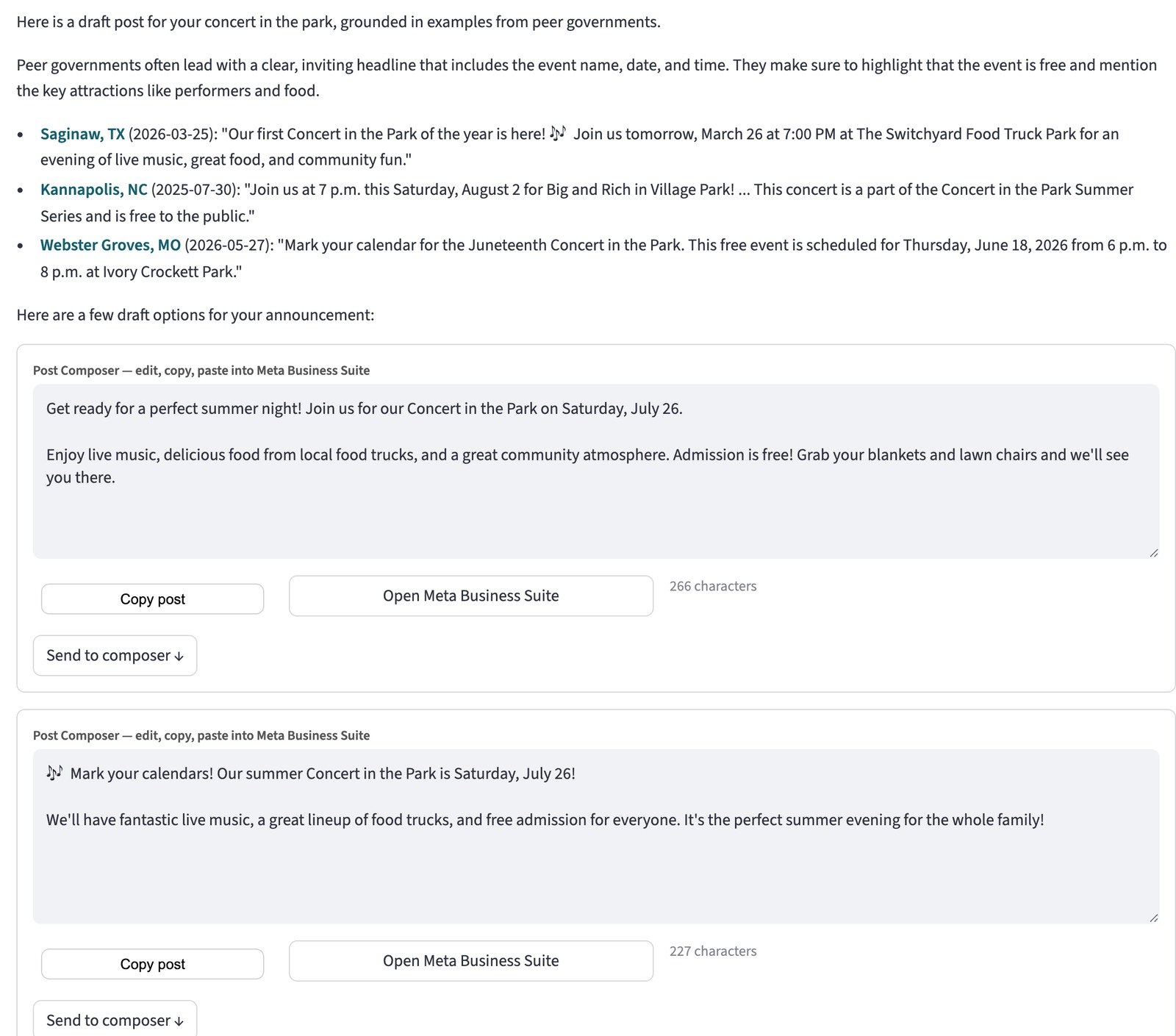
The composer doesn’t replace the GovFeeds AI chat — the two work together. Ask the chat for a draft and you’ll get what you always get: a read on how peer governments handled the topic, the real posts themselves, and a few draft options to choose from. Every option now carries a Send to composer ↓ button that drops it into the panel, where it stays put for editing and export while you keep chatting.
The last step stays yours
GovFeeds doesn’t post to your Facebook page, and that’s deliberate honesty rather than modesty: Meta doesn’t offer any way for an outside tool to create a draft inside Business Suite. So the composer gets you to the doorstep in one click — Open Meta Business Suite opens Meta’s own composer — and the publish itself is a paste (plus an image attach, if you made one). A person on your team reads every word before it goes out. For announcements that took an hour of staring at a blank box, the composer turns the job into a couple of minutes of editing — with the peer evidence one click away the whole time.
Questions we expect (and honest answers)
Who gets the Post Composer?
Everyone. As of July 19, 2026 it’s on for every GovFeeds account on every plan, including the 14-day free trial. It lives in the GovFeeds AI tab, in the panel just above the chat box — no setup, nothing to enable.
Does it post directly to my Facebook page?
No — and no tool can create a draft inside Meta Business Suite, because Meta doesn’t offer that capability. The composer produces finished, copy-ready text (and an optional downloadable image), then opens Meta Business Suite for you; publishing is a paste and an attach. A human on your team always reviews and posts.
Where do the drafts actually come from?
Each draft is grounded in a live search of GovFeeds’ corpus — 1.1 million+ public posts from 5,000+ U.S. city and county government accounts. The “Grounded in these real peer posts” list under the draft is the exact set of posts the AI was given, each linked to the original on Facebook. Facts the AI can’t know — dates, names, locations — come back as [bracketed placeholders] with a warning, never invented. And if no peer post closely matches, the composer says so instead of faking a list.
Can it make the graphic too?
Yes. Tick “Also generate an image for the post,” or simply mention an image in your topic (“back to school safety, with an image”), and the draft arrives with a clean, non-partisan civic graphic sized for social — download it and attach it when you paste the post.
Your next post is already half-written.
Start a free 14-day trial, open GovFeeds AI, and type the announcement you’ve been putting off into the Post Composer.